JavaScript Calculator
A vanilla HTML/CSS/JavaScript calculator built for The Odin Project Foundations curriculum — with Web Audio API click sounds, Web Speech API voice input, keyboard support, and a long-press power toggle.
Screenshot
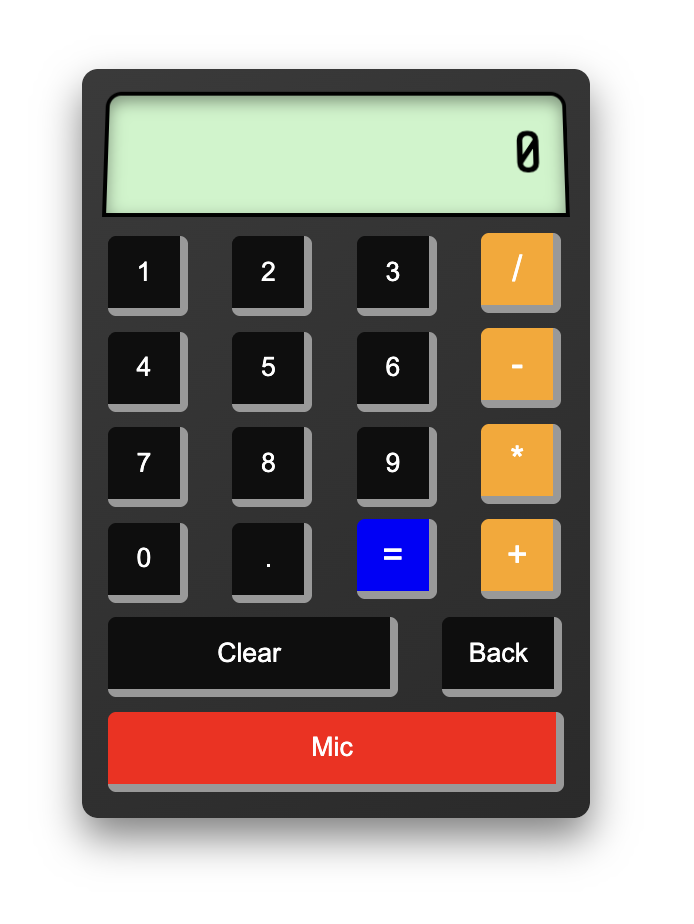
Problem
The Odin Project's calculator assignment is intentionally open-ended: build a working calculator with the four operations. The baseline is straightforward. The goal I set for myself was to go further — make it feel like a real piece of hardware. That meant click sounds, keyboard input, and eventually a voice interface that animates every button press as if someone is physically operating it.
Challenge-Based Learning
Challenge: Build a calculator that goes beyond the spec — tactile sounds, keyboard control, a spoken input pipeline, and a hidden power toggle — using nothing but the browser's own APIs.
Approach: Used the Web Audio API to generate click sounds procedurally, the Web Speech API's SpeechRecognition and SpeechSynthesis to build a voice round-trip, and a setTimeout chain to animate each button press in sequence.
Outcome: A calculator that responds to your voice, reads the result back to you, and plays a tactile click on every key — all without a single external file or library.
Project Snapshot
- Platform: Static site hosted on GitHub Pages
- Stack: HTML · CSS · Vanilla JavaScript · Web Audio API · Web Speech API
- Type: Curriculum project (The Odin Project Foundations) with extended features
- Team: Solo
- Role: Designer and developer — layout, logic, audio, and voice pipeline
Tech Stack
Key Features
Voice Input
Speak a calculation ("5 plus 3") and every button animates and plays a click sound in sequence — then the result is read back aloud using SpeechSynthesis. A word map converts spoken words to symbols before the key-press sequence fires.
Web Audio Click Sounds
Every key press generates a short synthesized click using the AudioContext API — no audio files, no fetch requests. A 20ms buffer of white noise runs through a gain node with an exponential ramp, producing the sharp mechanical click of a physical key.
Keyboard Support
All calculator operations are mapped to keyboard shortcuts so the calculator works without touching the mouse. Number keys, operators, Enter for equals, Backspace, and Escape for clear all wire up to the same button-click handlers.
Long Press Power Toggle
Hold the Clear button for 1 second to turn the calculator on or off — the screen goes black and all input is silently ignored while it's off. Implemented with a setTimeout on mousedown that cancels on mouseup if released too quickly.
Chained Calculations
After evaluating a result, pressing an operator continues from that result rather than starting fresh. A state flag tracks whether the last action was an equals press so the display and operand are handled correctly in sequence.
Decimal & Backspace
Decimal input guards against duplicate dots on the same number. Backspace removes the last character from the display — or clears the whole operand if only one digit remains — giving the user an easy way to correct a single mis-press.
Challenges
Voice Input — Orchestrating a Button-Press Sequence
The hardest part wasn't recognizing speech — it was what to do with it afterward. SpeechRecognition returns a full transcript as a string ("five plus three"). The transcript is split into words and each word is looked up in a wordMap — so "divided" becomes "/" and "by" is dropped (mapped to an empty string). Spoken digits like "five" become "5" the same way.
Each mapped character is then matched against every button's textContent and clicked with a 300ms stagger — so the animation and audio play out in real time. An = is pushed to the end automatically. A single setTimeout fires after all presses complete and reads the display value aloud with SpeechSynthesisUtterance.
const wordMap = {
    'zero': '0', 'one': '1', 'two': '2', 'three': '3', 'four': '4',
    'five': '5', 'six': '6', 'seven': '7', 'eight': '8', 'nine': '9',
    'plus': '+', 'minus': '-', 'times': '*', 'divided': '/', 'by': '',
    'equals': '=', 'equal': '='
};

recognition.onresult = function(event) {
    const transcript = event.results[0][0].transcript;
    const words = transcript.toLowerCase().split(' ');
    const characters = [];

    words.forEach(function(word) {
        const mapped = wordMap[word] !== undefined ? wordMap[word] : word;
        mapped.split('').forEach(function(char) {
            if (char !== '') characters.push(char);
        });
    });

    characters.push('=');

    characters.forEach(function(char, index) {
        setTimeout(function() {
            document.querySelectorAll('button').forEach(function(button) {
                if (button.textContent.trim() === char) {
                    button.classList.add('pressed');
                    button.click();
                    setTimeout(function() { button.classList.remove('pressed'); }, 100);
                }
            });
        }, index * 300);
    });

    const speakDelay = characters.length * 300 + 400;
    setTimeout(function() {
        const utterance = new SpeechSynthesisUtterance(answerScreen.textContent);
        window.speechSynthesis.speak(utterance);
    }, speakDelay);
};
The speakDelay calculation waits for all button animations to finish before the readback fires. Without the extra 400ms buffer, the speech would start before the equals press had time to update the display.
Web Audio API — White Noise Click Without Audio Files
Using an oscillator produces a tonal pitch that sounds more like a beep than a click. The real mechanical feel comes from noise — a short burst of random samples that has no frequency, just percussive texture. The Web Audio API can generate this entirely in memory with no files and no network request.
createBuffer allocates 20ms of audio data. A loop fills every sample with a random value between -1 and 1 (pure white noise). A gain node then ramps the volume from 0.3 down to near-silence over those same 20ms — so the click is sharp at the front and dies immediately, just like a physical key.
function playClick() {
    const audioCtx = new AudioContext();
    const bufferSize = audioCtx.sampleRate * 0.02; // 20ms of samples
    const buffer = audioCtx.createBuffer(1, bufferSize, audioCtx.sampleRate);
    const data = buffer.getChannelData(0);

    for (let i = 0; i < bufferSize; i++) {
        data[i] = Math.random() * 2 - 1; // white noise
    }

    const source = audioCtx.createBufferSource();
    const gainNode = audioCtx.createGain();

    source.buffer = buffer;
    source.connect(gainNode);
    gainNode.connect(audioCtx.destination);

    gainNode.gain.setValueAtTime(0.3, audioCtx.currentTime);
    gainNode.gain.exponentialRampToValueAtTime(0.001, audioCtx.currentTime + 0.02);

    source.start();
}
One browser constraint: AudioContext requires a user gesture before it can produce sound. Since playClick() only ever runs inside a button click handler, this is always satisfied — no special handling needed.
Long Press — Distinguishing a Tap from a Hold
The Clear button doubles as a power button: a normal tap clears the display; holding it for 1 second toggles the calculator off — the screen goes black and every subsequent key press silently returns early. Hold again to turn it back on.
A setTimeout fires on mousedown and is cancelled on mouseup if released too soon. The isOff flag is read at the top of every button click handler, so no input reaches the calculator logic while it's off.
let powerTimer;
let isOff = false;

clearButton.addEventListener("mousedown", function() {
    playClick();
    powerTimer = setTimeout(function() {
        isOff = !isOff;
        if (isOff) {
            answerScreen.style.backgroundColor = "black";
            answerScreen.textContent = "";
        } else {
            answerScreen.style.backgroundColor = "#c8f5c8";
            answerScreen.textContent = "0";
        }
    }, 1000);
});

clearButton.addEventListener("mouseup", function() {
    clearTimeout(powerTimer);
});

// At the top of every button click handler:
if (isOff) return;
The click sound plays on mousedown rather than click so the audio fires immediately when the finger lands — matching the physical feel of pressing a key before you hear what it does.
Chained Calculations — Managing State After Equals
State lives in three module-level variables: num1 and num2 are strings that accumulate digits as the user types, and operator holds the pending operation. A resultDisplayed flag tracks whether the last action was an equals press.
When equals fires, the result is written back into num1 and the flag is set. On the next digit press, the flag causes num1 to reset before the new digit appends — so the user starts fresh. On the next operator press the flag just resets, leaving num1 as-is so the chain continues from the result.
let num1 = "";
let operator = null;
let num2 = "";
let resultDisplayed = false;

// "=" button
let result = operate(num1, operator, num2);
result = parseFloat(result.toFixed(4));
answerScreen.textContent = result;
num1 = result;
operator = null;
num2 = "";
resultDisplayed = true;

// Digit button (operator is null, so we're building num1)
if (resultDisplayed === true) {
    num1 = "";          // start fresh after a result
    resultDisplayed = false;
}
num1 = num1 + buttonValue;

// Operator button — just store it; num1 already holds the result
operator = buttonValue;
// resultDisplayed is implicitly reset because the next digit press checks it

// Display always shows the active operand
answerScreen.textContent = operator === null ? num1 : num2;
The display line at the bottom is the whole rendering logic: if no operator has been set yet we're still building num1, otherwise we're building num2. One line handles all display updates.
Outcome
What started as a standard Odin Project assignment became a deep dive into two browser APIs that most beginner projects never touch. Building the voice input pipeline — recognition, normalization, animated playback, and speech synthesis — in pure JavaScript clarified exactly how the browser's event loop and setTimeout scheduling work in practice. Every feature that felt like a stretch ended up being the most instructive part of the project.
What I Learned
- How the Web Audio API generates sound procedurally — white noise buffers, gain nodes, and exponential ramps — without any external files
- The Web Speech API's two halves:
SpeechRecognitionfor input andSpeechSynthesisfor output, and how to chain them into a round-trip voice pipeline - How
setTimeoutscheduling creates the appearance of sequential animation — and why each step must complete before the next fires - Long press detection: using
mousedown/mouseuptimers and a flag to separate a tap from a hold without both actions firing - Calculator state management — specifically the edge cases around chaining operations after an equals press
- Why browsers require a user gesture before allowing audio playback, and how to structure code around that constraint
Next Iteration
- Add parentheses support for proper order-of-operations in complex expressions
- Improve voice recognition robustness — handle compound numbers ("twenty five") and add an undo command
- Persist the last result in
localStorageso it survives a page refresh - Add a calculation history panel that shows recent expressions and lets you tap one to reuse it
- Explore the
AudioWorkletAPI for lower-latency sound generation as an upgrade fromAudioContext